
To measure coffee grind size from a photo, spread separated grounds on white paper beside a ruler, photograph them from directly above, then mark a known distance and select the grounds in a photo analyzer. Beanloom estimates the size of visible particles and shows their distribution. The quality of the photo and calibration determines how useful that estimate is.
This tutorial follows the four steps in the free coffee grind size analyzer: Upload photo, Set scale, Select grounds, and Results. No signup is required. The selected photo is decoded and analyzed in your browser without being uploaded to Beanloom.
Prepare a useful photo
You need ground coffee, plain white paper, a ruler with readable millimeter marks, and a phone or camera. Use a small sample so you can separate the particles. A mound of grounds hides edges and cannot give a useful picture of individual sizes.
- Spread one sparse layer. Gently separate touching pieces. Keep paper texture, crumbs, chaff and other debris out of the area you plan to analyze. Do not deliberately pick only the largest or easiest-to-see grounds.
- Keep the ruler beside the grounds. Put it on the same flat surface. Both ends of the distance you will mark must be visible. A reference on a different plane can give a different image scale.
- Photograph straight down. Keep the camera parallel to the paper. An angled photo makes scale vary across the image; one reference line cannot correct that perspective.
- Use bright, even light and check focus. Particle edges should look distinct when you zoom into the photo. Hard shadows can look like extra coffee or enlarge a detected shape. Retake a blurred image rather than trying to fix it with a different scale.
- Keep enough detail. Frame the grounds and reference clearly. A wide shot of the whole table leaves fewer pixels per particle. Preserve the original image rather than using a compressed messaging-app copy.
Choose a JPG, PNG or WebP file up to 25 MB. If your phone saves HEIC, export a supported format first. Changing a file’s extension alone does not convert it.
Analyze your photo in four steps
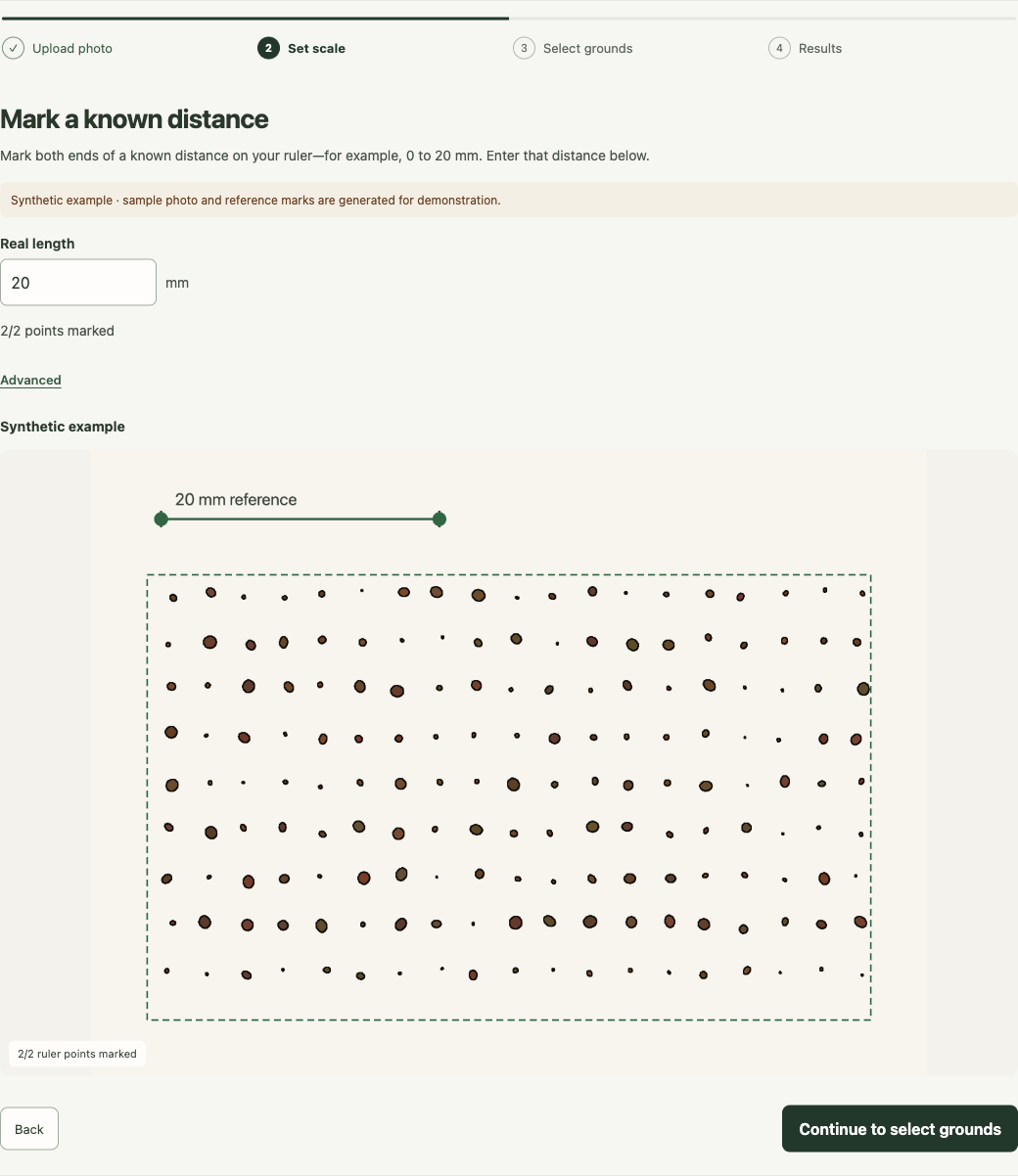
The screenshots below show the tool’s synthetic example, a generated demonstration image. It is useful for learning the controls and is not a real coffee sample or evidence of measurement accuracy.
1. Upload the photo
Select Choose photo and open your prepared image. The tool moves to Set scale. For a practice run, select Try a synthetic example; it provides reference marks and a sample region, but still asks you to confirm the scale step.
2. Set the scale in millimeters
On the image, mark the two ends of a distance you can read on the ruler. Enter that same distance in Real length. For example, if the endpoints are the 0 mm and 20 mm marks, enter 20. If you use the 10 mm and 30 mm marks, the distance is also 20 mm, not 30 mm.
Use millimeters, not centimeters: a 2 cm span is 20 mm. The tool needs the length between your two points, not the full ruler length. Real-photo inputs start empty; the placeholder is not an automatically detected measurement.
Expand Advanced if you need to enter endpoint coordinates or select Mark endpoints again. When the reference is set, select Continue to select grounds.
3. Select the grounds
Drag a rectangle around an area of separated particles. Keep the ruler, reference markings, image borders and unrelated objects outside it. Choose a representative area rather than selecting only coarse pieces or a patch of fine powder.
The Advanced controls let you enter the region’s position and dimensions or choose Draw a new sample region. Once the region is selected, select Analyze particles.
4. Inspect the detected particles
Before reading D50, inspect the marks on the result image. Do the boundaries follow individual coffee particles? Are shadows, ruler lines or paper marks being counted? Are clusters being treated as single large pieces?
If the overlay does not match the photo, go back to Select grounds or prepare a new image. Revisiting a step is possible through the step navigation. Changing the scale or selection clears the previous result, so run the analysis again after an edit.
Read the particle-size distribution
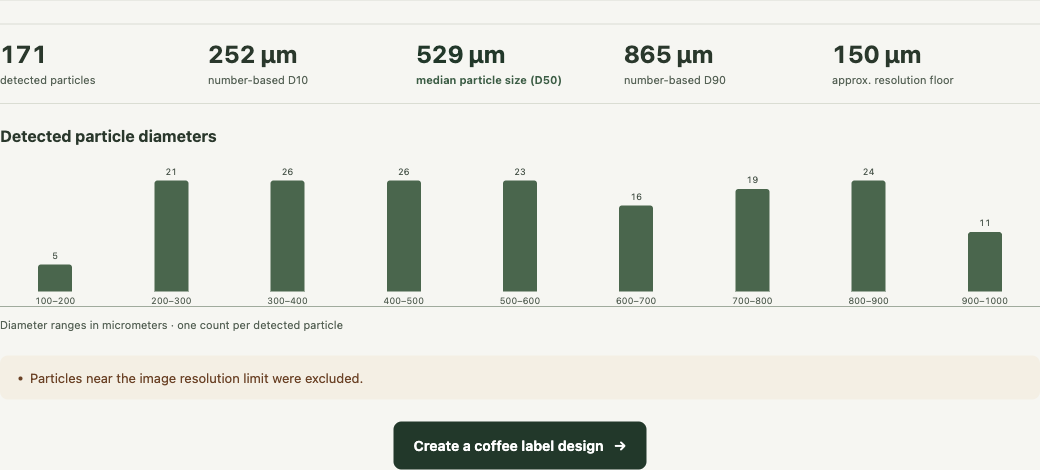
Each detected particle is a two-dimensional shape. Beanloom calculates the diameter of a circle with the same projected area and reports it in micrometers, shown as µm. 1,000 µm equals 1 mm. This equivalent-circle diameter is not a measurement of the particle’s longest edge, thickness or three-dimensional surface area.
| Field | How to read it |
|---|---|
| Detected particles | The number of resolved shapes included in this result. It is not every particle in your dose. |
| D10 | The lower percentile: approximately 10% of detected particles have an estimated diameter at or below this value. |
| D50 | The median: approximately half of detected particles have an estimated diameter at or below this value. It is not the arithmetic mean. |
| D90 | The upper percentile: approximately 90% of detected particles have an estimated diameter at or below this value. |
| Histogram | A count of detected particles in each diameter range. Each detection contributes one count. |
| Approx. resolution floor | An estimate of the smallest resolvable diameter at the calibrated image scale. Particles below it cannot be counted reliably. |
These percentiles are number-based. A small detected particle has the same weight as a large detected particle. Many laboratory distributions use volume weighting instead. You cannot compare their D50 directly with Beanloom’s D50 and assume the difference represents a change in your grind. Jonathan Gagné’s analysis of particle-size distributions explains why the way a distribution is represented matters.
For an illustrative example, suppose a result shows D10 = 200 µm, D50 = 500 µm and D90 = 900 µm. That places the middle 80% of detected diameters roughly between 200 and 900 µm. It does not mean 80% of your coffee’s mass lies in that interval. These invented example values explain the fields; they are not brewing targets.
The resolution floor is not an accuracy margin. If it reads 150 µm, that does not mean every larger measurement is accurate to ±150 µm, or that the sample contains no particles below 150 µm. Those smaller particles may simply be invisible to this photo.
Fix an unreliable estimate
The result looks much too large or too small
Check calibration first. With the same endpoints and photo, entering 40 mm for a real 20 mm span doubles the reported particle diameters. Check the units and both marked endpoints before interpreting a surprising result. Also check for camera tilt and clusters detected as single particles.
The tool reports too few particles or low resolution
A sharper image and more separated grounds may help. The current detector requires at least 30 resolved particles to return a result and warns about small counts below 100. These are processing checks, not proof that a sample is statistically representative. Adding a dense pile will not solve a resolution problem.
If calibration resolution is too low, use a clearer photo and a longer visible reference span. Merely drawing a longer line across an unmeasured distance does not add detail or provide a valid scale.
The overlay follows shadows or joins several grounds
Retake the photo with more even light and better separation, or select a clean region. A detailed-looking overlay can still be wrong. The original Coffee ad Astra photo-analysis project is useful background on what image-based grind analysis can do; Beanloom is a separate implementation.
Repeated photos give different numbers
Keep lighting, camera distance, reference placement and sample preparation consistent. Different subsets of the grounds, focus and missed particles can change the distribution. Beanloom has not been validated for physical accuracy or reliable ordering of grinder settings. If results disagree, do not average them into a claim that one setting or grinder is better.
Use the result in a brewing experiment
Record the grinder model and setting, coffee, brew method, dose, water or beverage yield, brew time and taste alongside the photo. Use the overlay and distribution as additional observations. Keep other brewing variables steady when trying a different grind setting, then judge the change in the cup.
For a qualitative starting point by brewing method, use the coffee grind size chart. It serves a different purpose from the photo analyzer: choosing a starting texture rather than estimating particles in your image.
A photo result cannot select the best grind, predict extraction yield, assess burr quality or convert clicks between grinders. A narrow-looking distribution does not establish better taste. If you need validated measurements of fines or a comparison with a laboratory specification, use a suitable measurement method with a documented protocol.
Coffee grind measurement questions
How do I measure the size of my coffee grind?
For a photo-based estimate, photograph separated grounds with a known-size reference, calibrate that reference, select the grounds, and inspect the detected shapes before reading the distribution. The result covers visible, resolved particles in the selected image area. It does not measure the entire dose or replace validated physical analysis.
What is d10, d50, and d90 particle size?
They are percentile diameters. In Beanloom’s number-based result, approximately 10%, 50% and 90% of detected particles are at or below the respective diameters. Always check a tool’s weighting and sizing method before comparing percentiles from different reports.