
To make a specialty coffee card, gather the coffee’s confirmed origin, variety, processing method and tasting notes, choose the details readers need, then build and check the design. In Beanloom, you can turn those inputs into a digital 3:4 PNG for a coffee release page or social post. If you need a physical bag label, decide on the printer’s specifications before choosing a tool.
Prepare the coffee facts
Use your lot sheet, the producer’s information or the roaster’s release notes. Start with the coffee name, country, variety and process. Add region, elevation, producer, harvest or lot only when you have a confirmed value. Do not infer a variety or processing method from the country.
Pick a short set of tasting notes from your own tasting or the roaster’s published notes. Specific words such as peach, grape or black tea are easier to arrange than a paragraph describing the whole cup. The World Coffee Research Sensory Lexicon provides defined coffee flavor, aroma and texture attributes with reference materials for measuring intensity. A design card does not perform that assessment; it communicates the notes you supply.
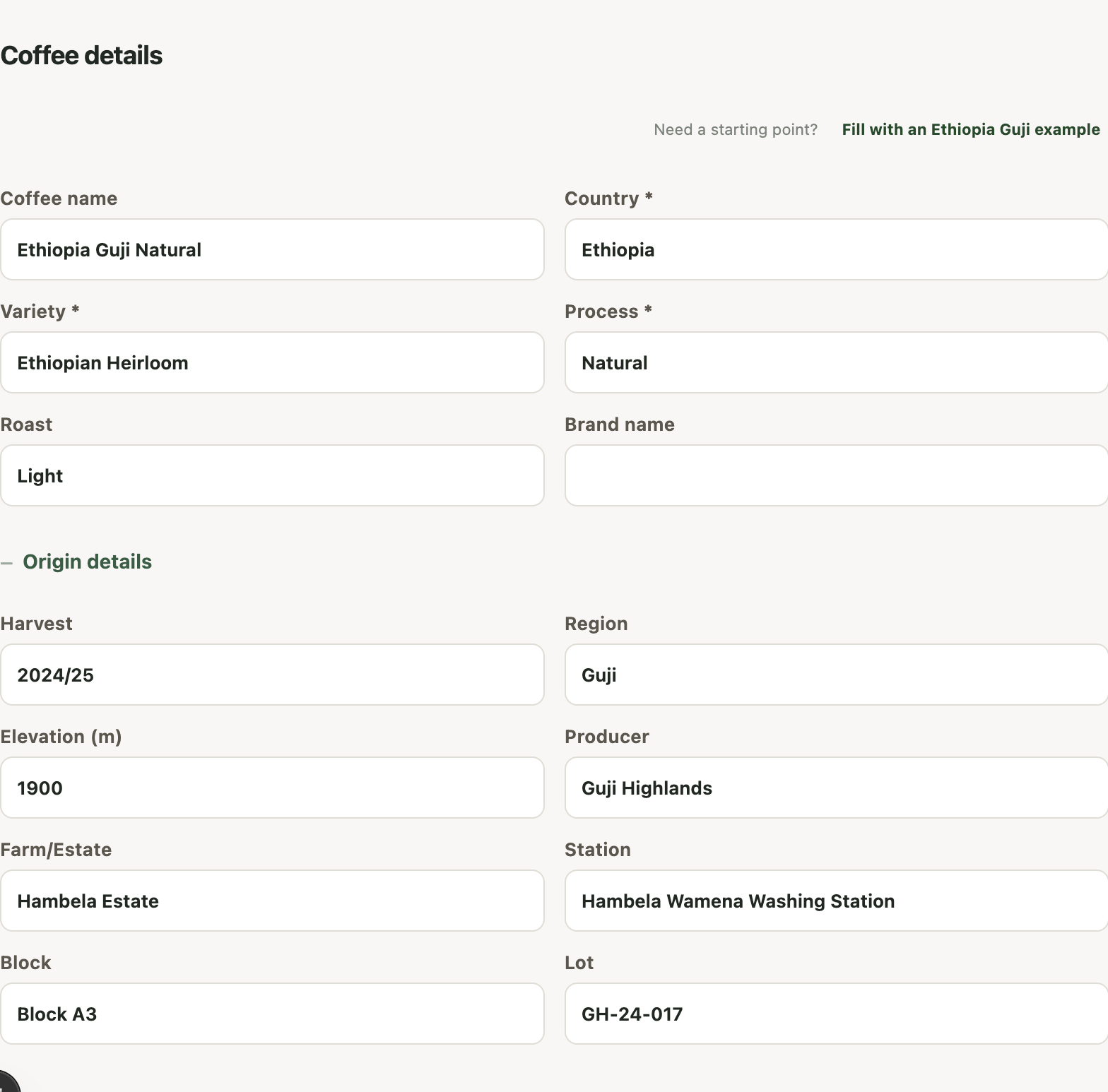
You can start with the built-in Ethiopia Guji example to learn the controls. The values below and in the screenshots are demonstration inputs, not a verified commercial lot or a tasting assessment.
- Coffee name
- Ethiopia Guji Natural
- Country and region
- Ethiopia, Guji
- Variety and process
- Ethiopian Heirloom, Natural
- Elevation and roast
- 1,900 m, Light
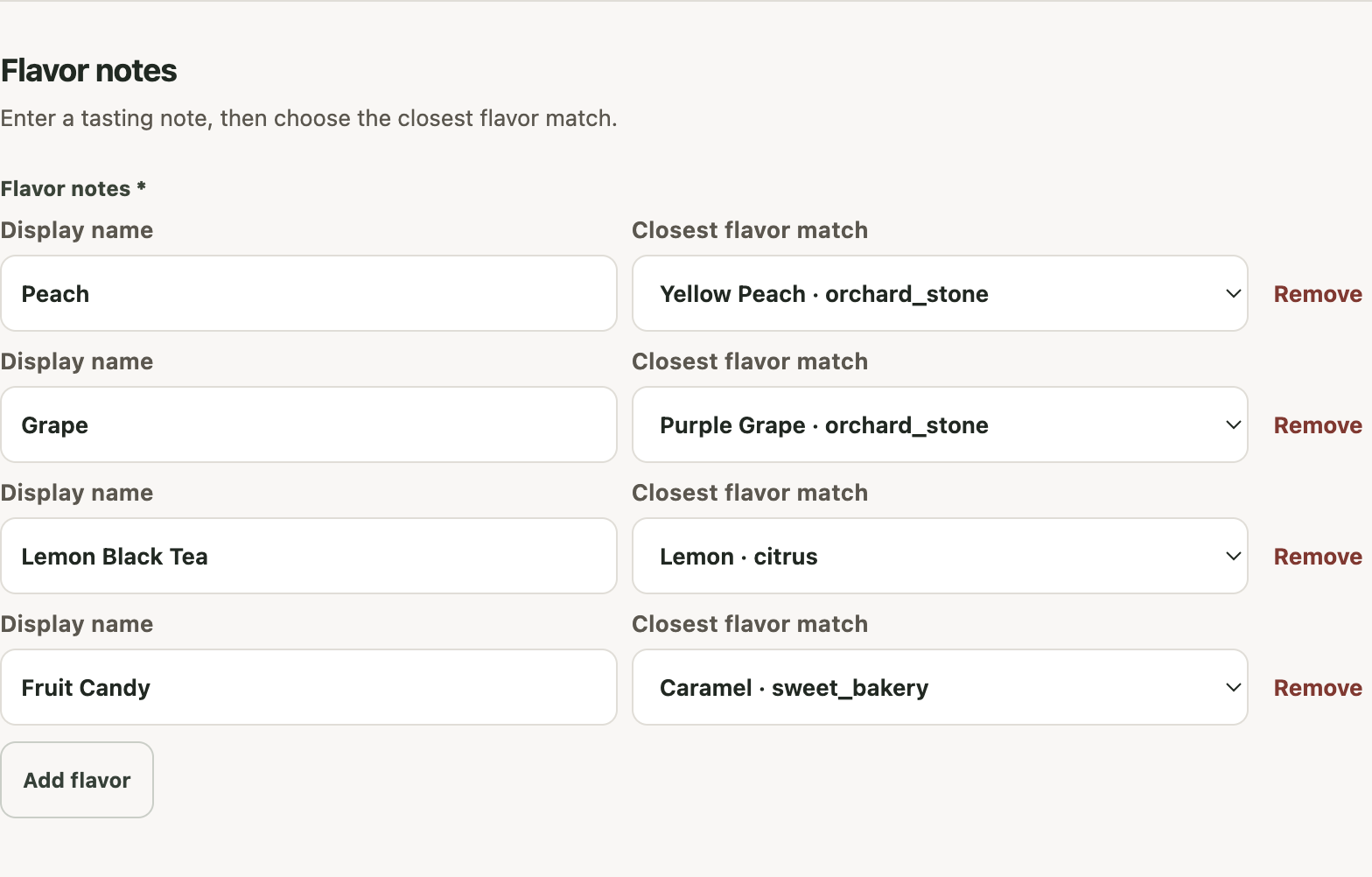
- Tasting notes
- Peach, Grape, Lemon Black Tea, Fruit Candy
Make the card in Beanloom
1. Enter the coffee and origin details
Open the coffee card editor in Flavor Gradient. Enter the coffee name, country, variety and process. Country, variety, process and at least one flavor note are required for this workflow. Roast and brand name are available too.
Expand Origin details to add region, elevation in meters, producer, farm or estate, station, harvest, block and lot. Leave optional fields empty when you do not know them. To follow the demonstration, select Fill with an Ethiopia Guji example instead of entering the sample by hand.
2. Match each tasting note to a flavor descriptor
Under Flavor notes, type the phrase you want readers to see in Display name. Then check Closest flavor match. The display name preserves your wording; the matched dictionary entry supplies the flavor association used by the design.
For example, “Peach” can map to “Yellow Peach.” A compound phrase such as “Lemon Black Tea” needs a deliberate match: the selected entry represents one part of the phrase, not a measurement of the entire cup. Change an unsuitable suggestion rather than accepting it automatically.
Use Add flavor for more notes, up to eight. A few distinct notes usually make a more readable card. If you need help browsing descriptors, the interactive coffee flavor wheel lets you explore Beanloom’s dictionary and bring selected notes into Create. Its colors are design associations; it is not the official SCA wheel or a sensory scoring tool.
3. Choose visible fields and a visual style
In Card content, select Customize fields. The default set shows coffee name, country, process, variety and flavor notes. Add region or elevation if those facts matter to this release. Hiding a field changes what appears on the card, rather than deleting the input.
Choose the style according to how you want to communicate the coffee:
- Flavor Gradient maps the selected flavor descriptors to colors using a rules-based renderer. It does not use AI image generation.
- Flavor Monster uses AI to create a flavor illustration, then composes the coffee text with it.
- Mono Color uses AI to generate the full card design. Inspect the lettering and factual details in the result.
Gradient is free. Monster and Mono Color require sign-in and Credits; check the displayed cost before confirming a generation. The Credits page explains the current charges. On a phone, open Preview & generate to view the preview and generation controls.
4. Generate and review the finished card
Select Generate card. Beanloom checks the coffee inputs first. Follow any field errors, and review the confirmation if a paid action is offered. The initial live draft is a layout preview, not a finished downloadable result.
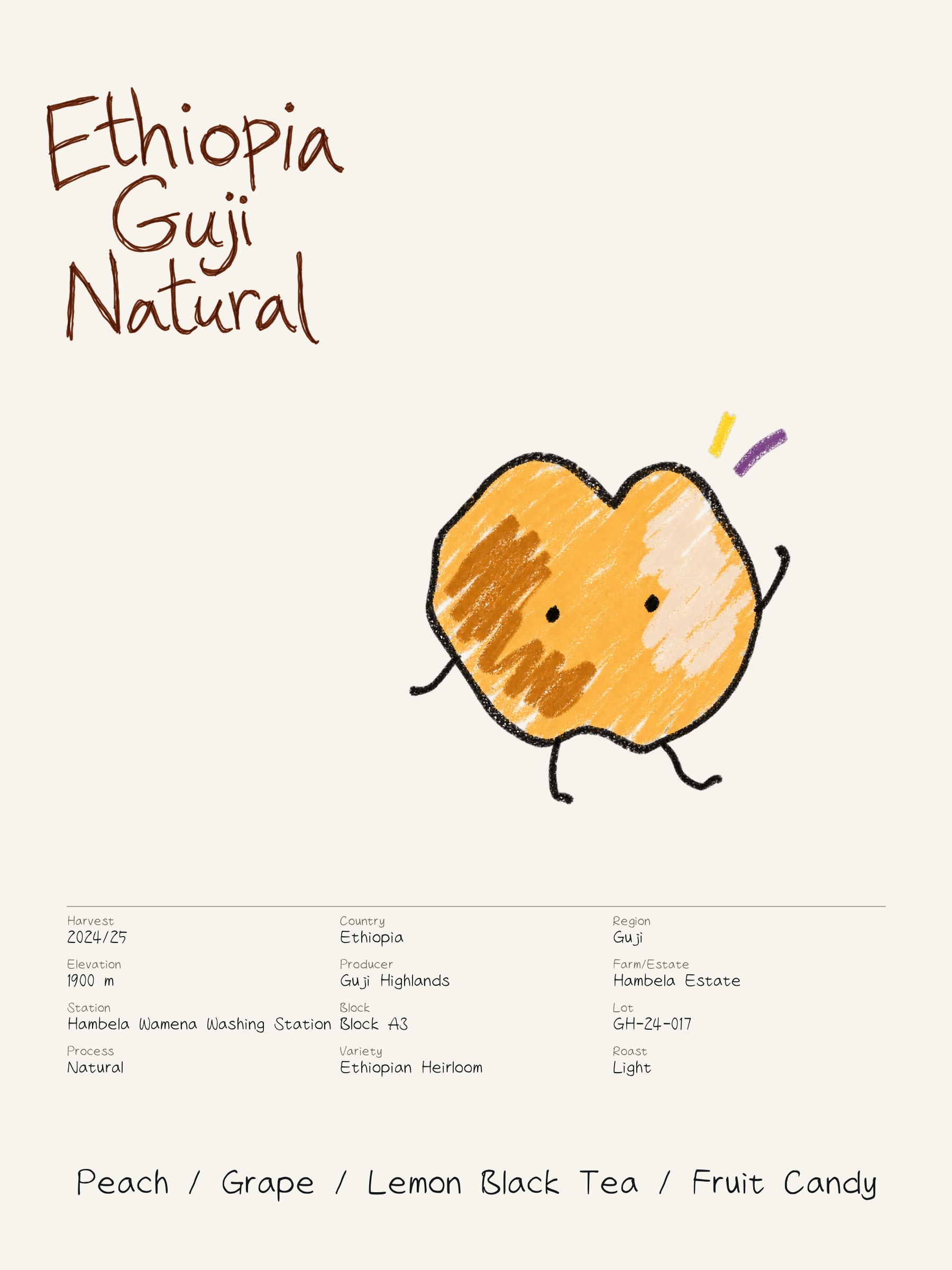
When the result is ready, check the coffee name, country, process, variety, visible origin details and flavor wording. Look for crowded text and unexpected AI lettering. If you change facts, create the updated result before downloading; do not share an earlier card with outdated information.
5. Download the PNG
Use Download watermarked PNG for a guest Gradient result, or Download PNG for an eligible signed-in result. Open the file and inspect it at the size it will appear on your release page or social post. Keep a copy of the source coffee information so you can check later revisions.
Signing in lets you save reusable coffee facts as a Coffee Profile and manage Cards in Workspace. A Card receives a one-time copy of those facts; changing the saved Profile does not automatically update an existing Card.
Choose a template when you want layout control
If you already know the layout you want, open the free coffee label template gallery instead. Choose a design, replace its supported text fields, and adjust background, text and accent colors or fonts. Signed-in users can also apply a saved Coffee Profile.
The template editor provides 12 named designs across eight layout families. It does not use AI or Credits. Guest exports are watermarked 900 × 1200 PNGs; signed-in exports are clean 1800 × 2400 PNGs. The canvas remains 3:4, so this route does not add custom physical label sizes or PDF export.
Check the download for its destination
The table lists current pixel dimensions. They are image dimensions, not a promise of a particular printed size.
| Route or style | Guest | Signed in |
|---|---|---|
| Editable templates | 900 × 1200, watermarked | 1800 × 2400, clean |
| Flavor Gradient | 900 × 1200, watermarked | 1800 × 2400, clean |
| Flavor Monster | Not available | 1800 × 2400, clean |
| Mono Color | Not available | 1086 × 1448, clean |
For online sharing, check readability, the destination’s image crop and whether the watermark suits your use. For printing, ask the printer about finished size, bleed, resolution, color requirements and file format. Beanloom does not export a print-ready packaging PDF, set bleed or arrange sticker sheets.
If physical labels are your main goal, compare Beanloom, Profilo and Canva by workflow and output before building the artwork.
Coffee card questions
Can I make a coffee card without an account?
Yes. You can edit a template or generate a Flavor Gradient card as a guest and download a watermarked PNG. Sign in for clean downloads and saved work. Flavor Monster and Mono Color require sign-in and Credits.
Why is the download button unavailable?
In Create, a live draft preview is not a generated result. Complete the required fields and flavor matches, generate the card, and wait for the result. If a field error appears, correct it before trying again.
Can I use the PNG as a coffee bag label?
Ask your printer whether the file meets the requirements for your chosen label. A digital card can inform a label design, but Beanloom’s PNG alone is not a print-ready packaging handoff.
Make a Flavor Gradient cardSee finished coffee card examples